YCS Hang on.

A short guide

Hi.
How to use your account.

The letters I send you, the notes from our meets, and the other pages in your Hang On account, in the order you’ll actually use them. The pictures are from a demo account.

A short walkthrough of each step
01

Get the daily WhatsApp

Each day I send you two links: one to read today’s letter, and one to log in. It looks like this.

Hi, today’s letter is up: …

Read it here: yourcopysucks.in/l/…

Log in to see all your letters and reply under any of them: yourcopysucks.in/l/…

Cheers,
Krishna, YCS
02

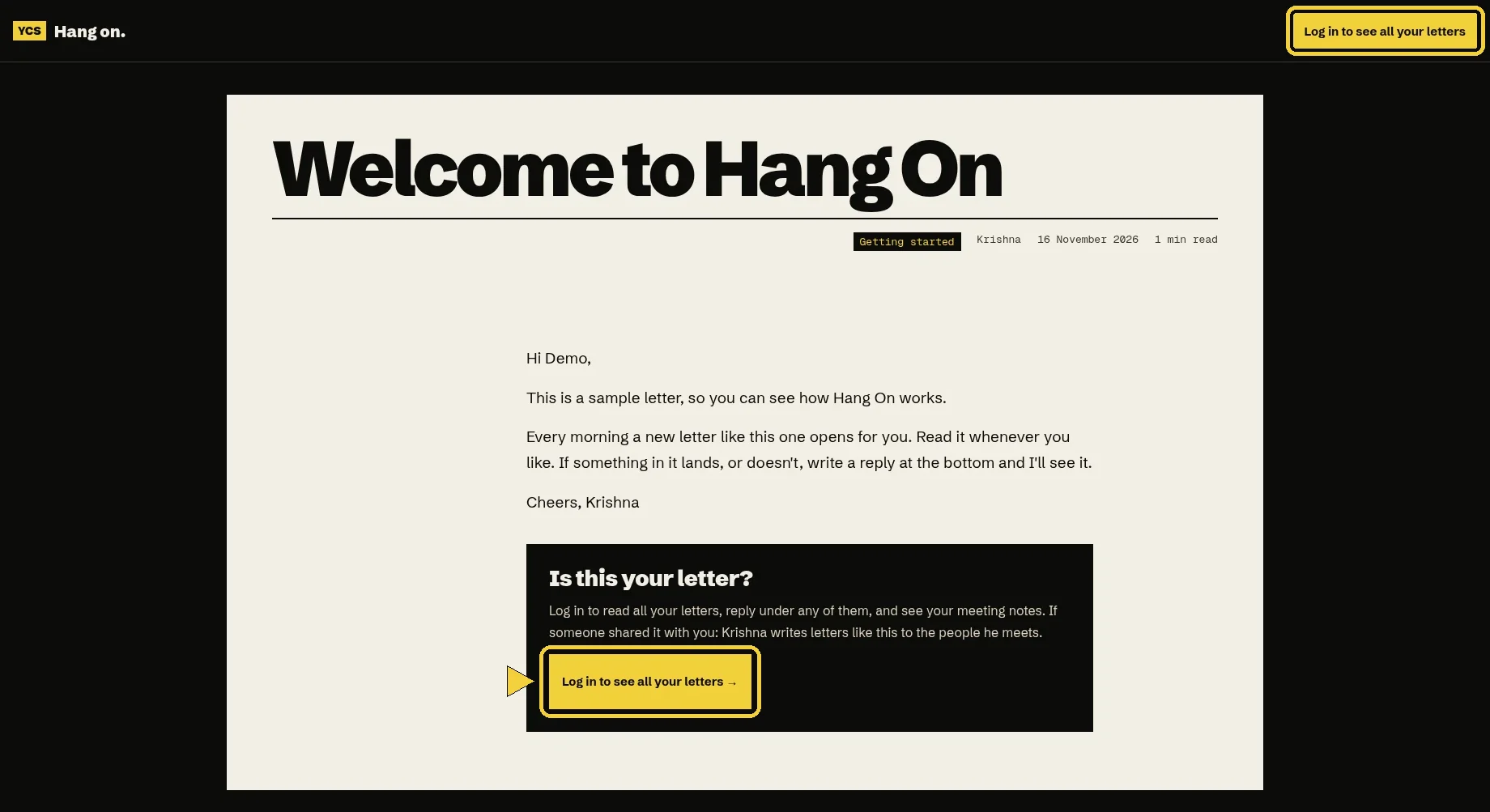
Open today’s letter

The first link opens the letter at once. You can read it without logging in. The yellow button is there when you’re ready for the rest.

A letter opened from the read link. The yellow Log in to see all your letters button is highlighted at the top and at the bottom of the letter.
03

Set your password once

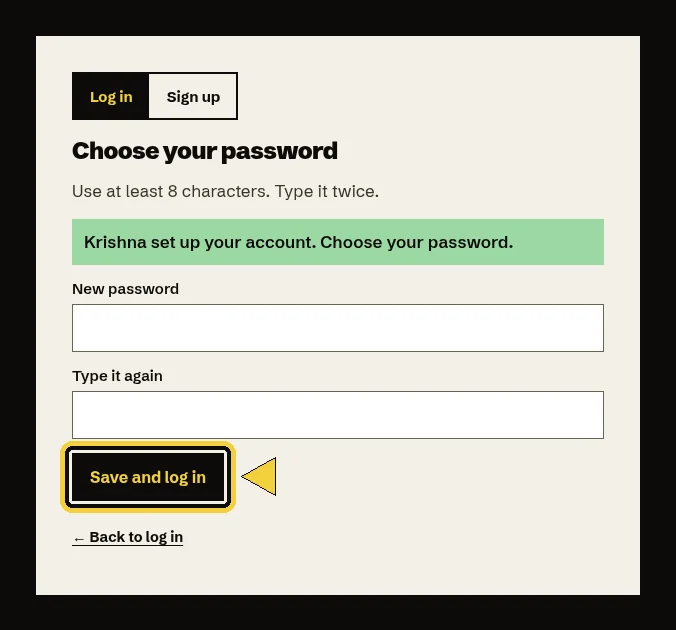
The second link opens your login page. The very first time, it asks you to choose a password. You only do this once. Use at least 8 characters, type it twice, then hit Save and log in.

The first-time Choose your password page, with the Save and log in button highlighted.
04

Log in for the rest

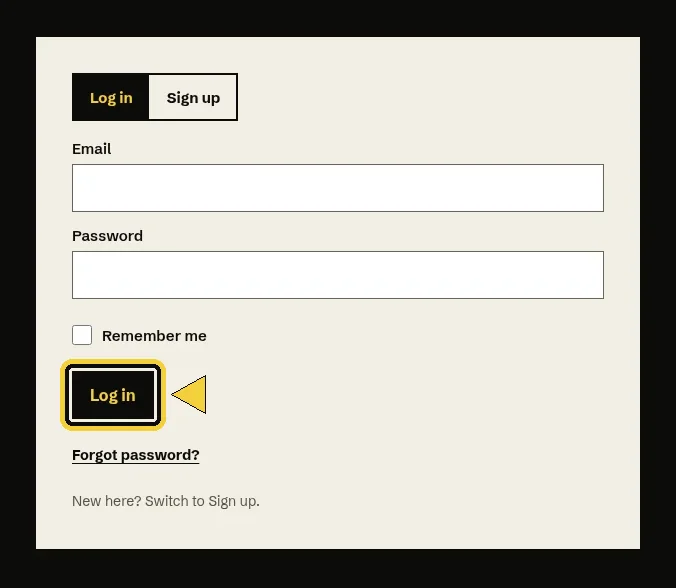
After that, the second link, or the yellow button on any letter, brings you straight to this login page. Log in, and that’s where every letter lives, and where you can reply.

The Hang On login form, with the Log in button highlighted. The Remember me box is above it.
05

Start on the Dashboard

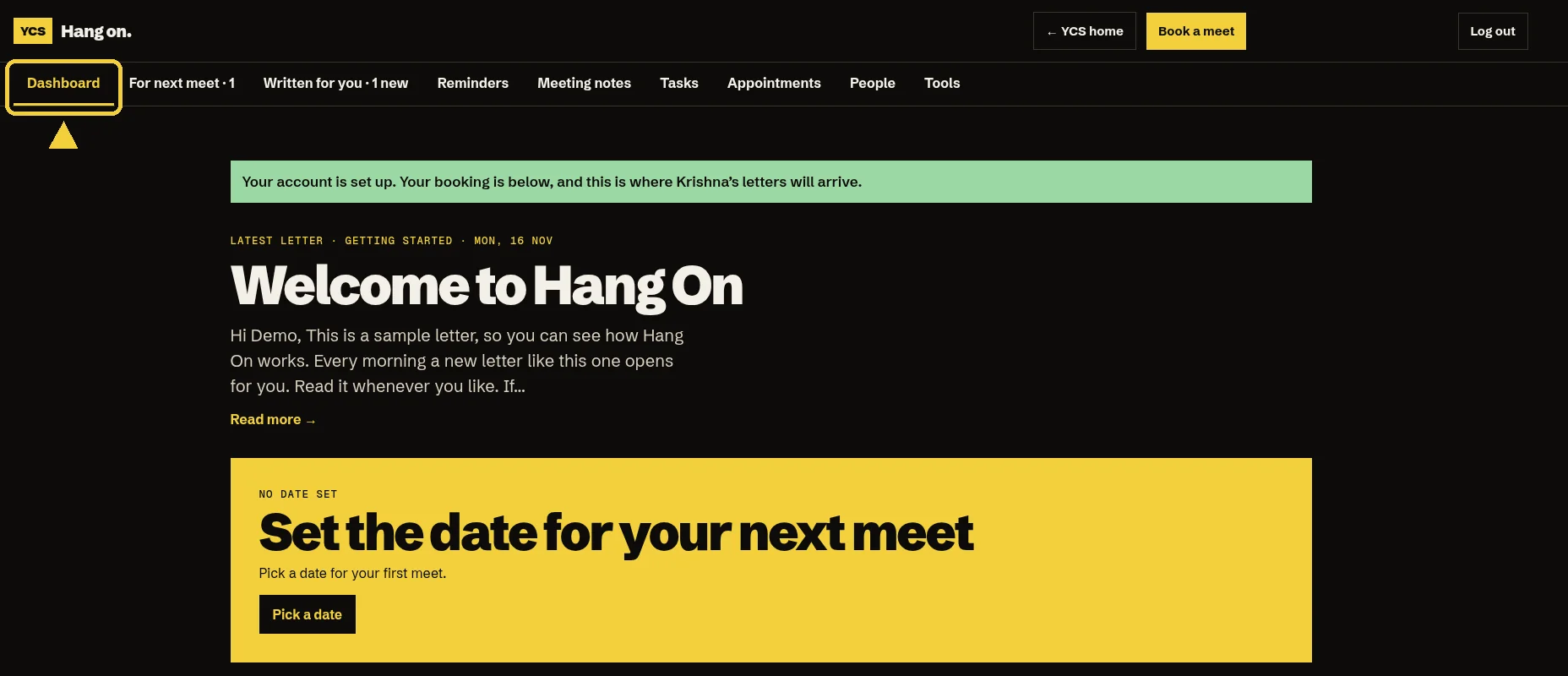
After you log in, this is the first page you see: your latest letter, and your next meet, in one place.

The Dashboard, with the Dashboard tab highlighted in the navigation.
06

Browse Written for you

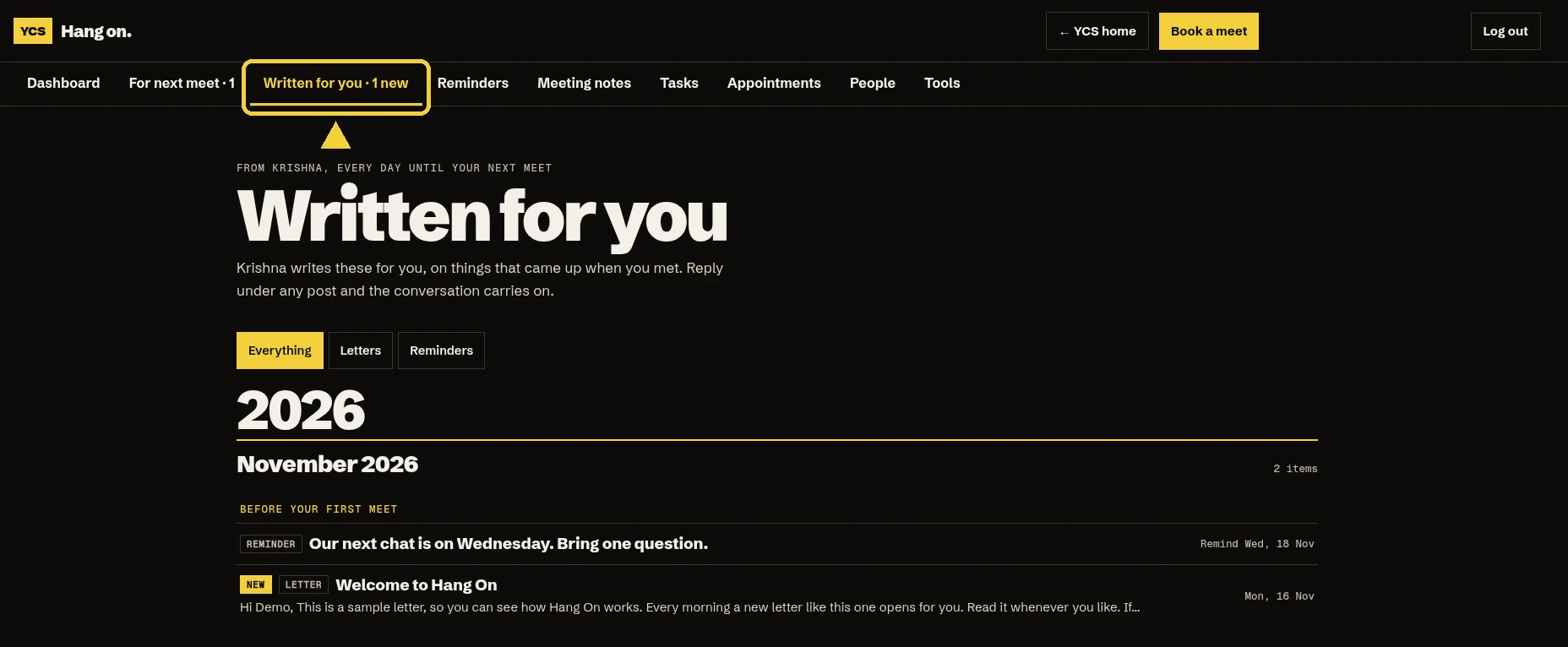
A new letter unlocks each morning. Open any of them from the list. Ones you haven’t opened yet are marked new.

The Written for you tab, highlighted in the navigation, with a new letter in the list.
07

Write a reply

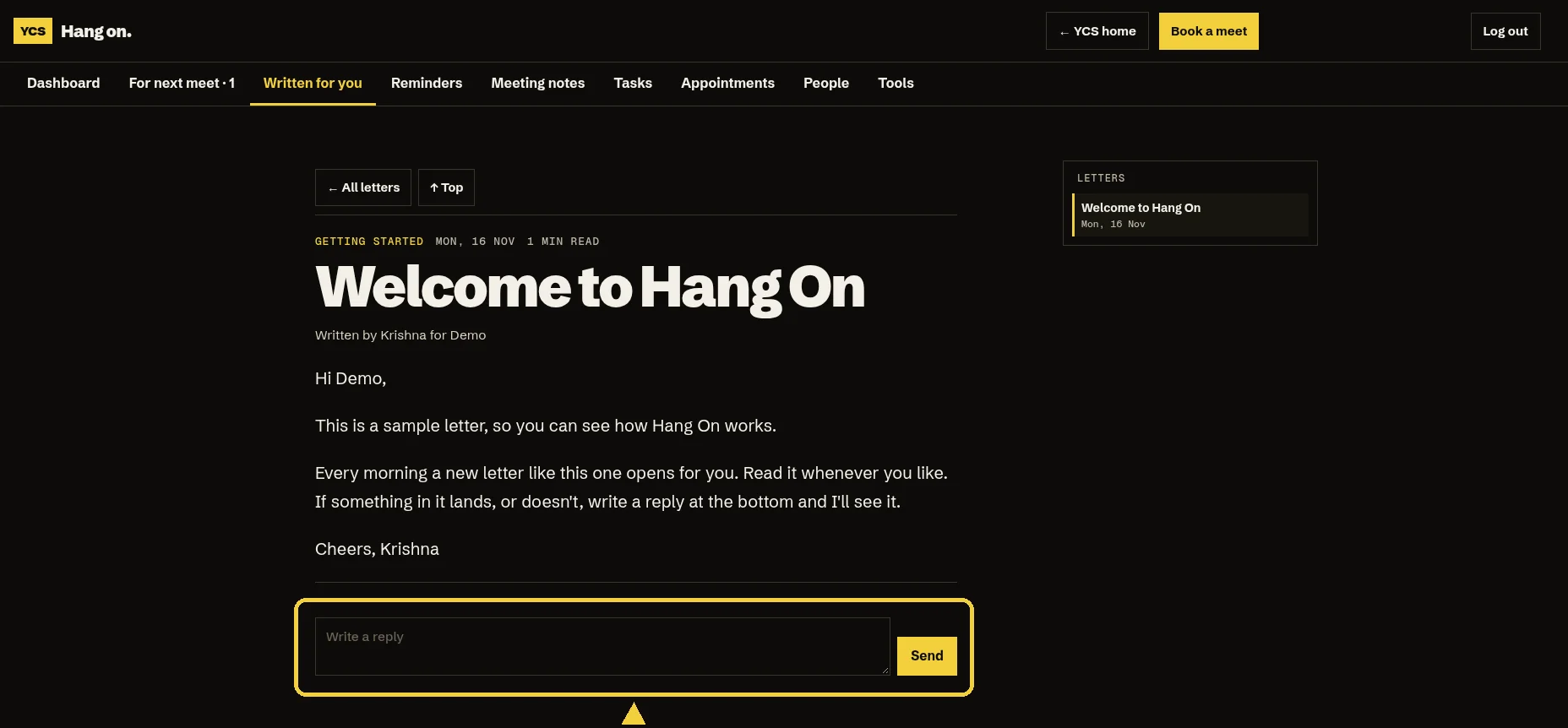
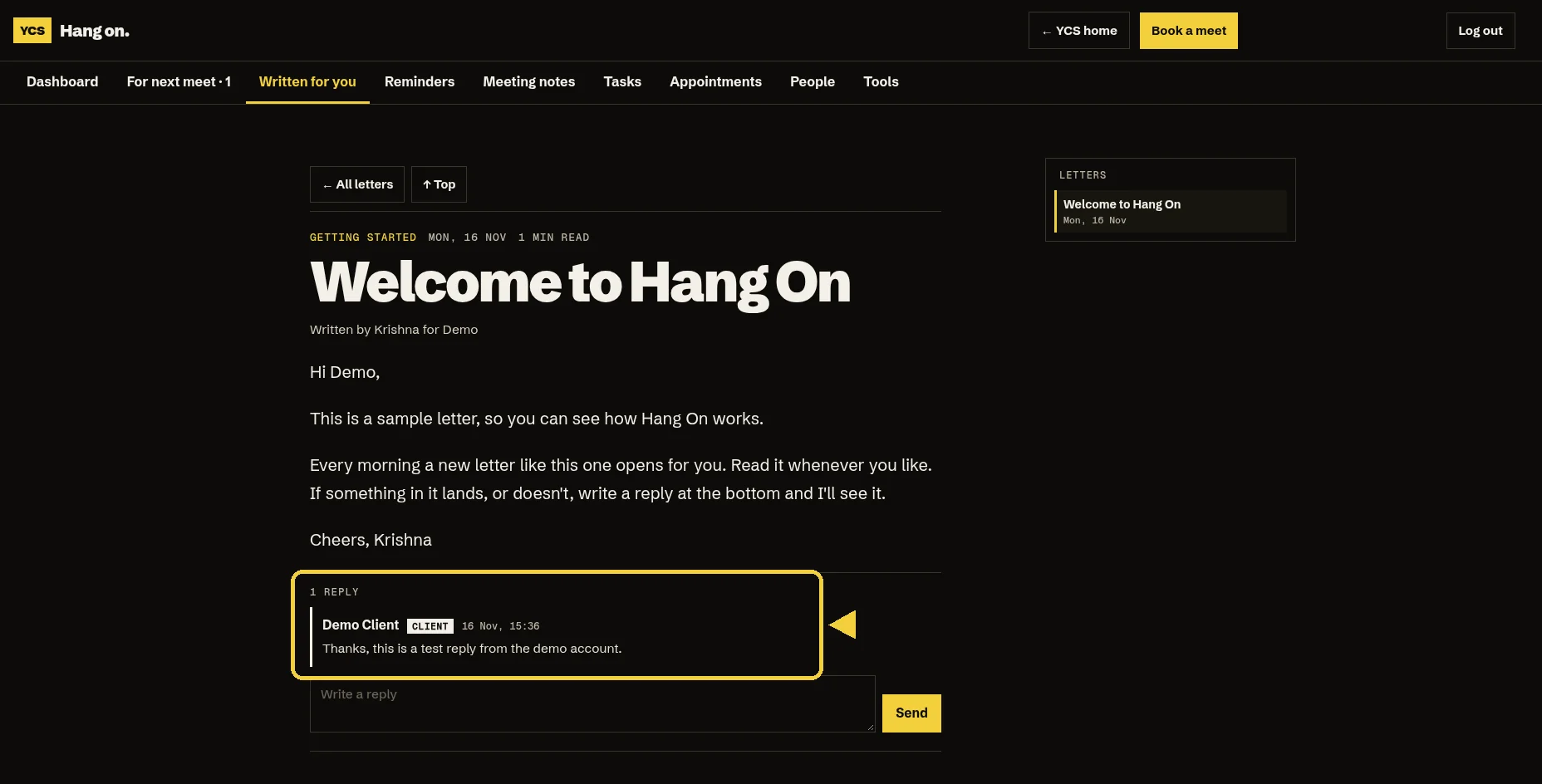
At the bottom of a letter there’s a box that says “Write a reply.” Hit Send. I’ll see it, and it stays under that letter. Same box under meeting notes and reminders.

A letter with the Write a reply box and the yellow Send button highlighted.
Type in the box and hit Send
The same letter after a reply has been posted, with the reply highlighted.
Your reply stays under the letter
08

Check Meeting notes

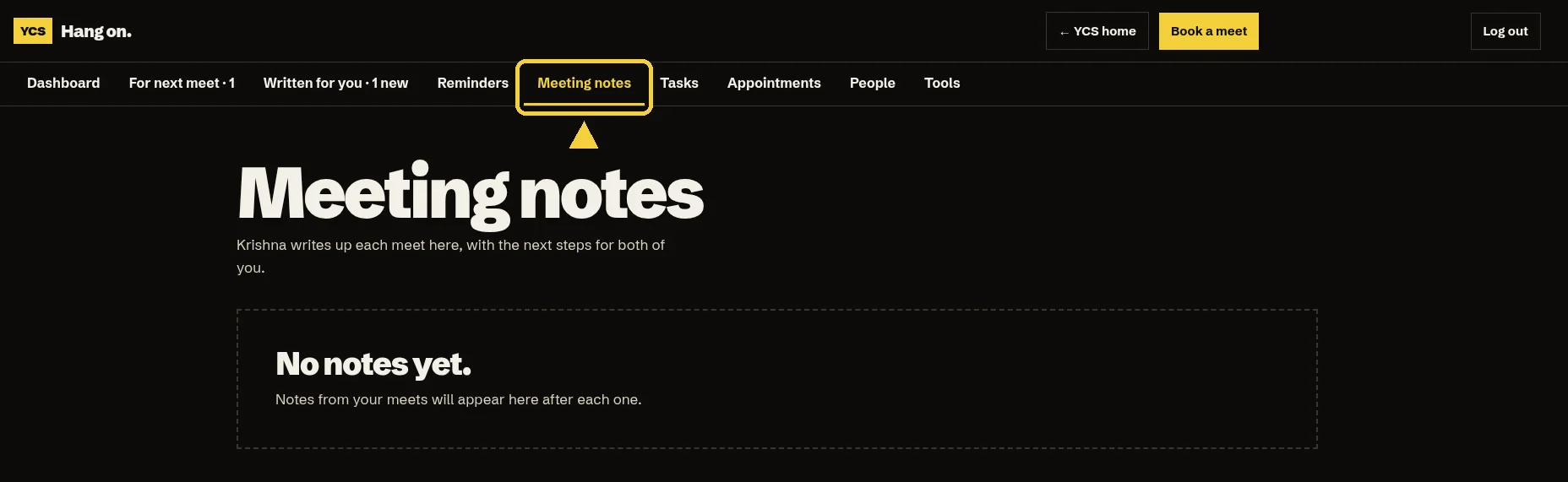
After we meet, the notes and next steps show up in this tab. If it says “No notes yet,” I haven’t written them up. If I missed something, add it underneath and I’ll put it in.

The Meeting notes tab, highlighted in the navigation, showing No notes yet.

Also in your account

The rest of your account

For next meet

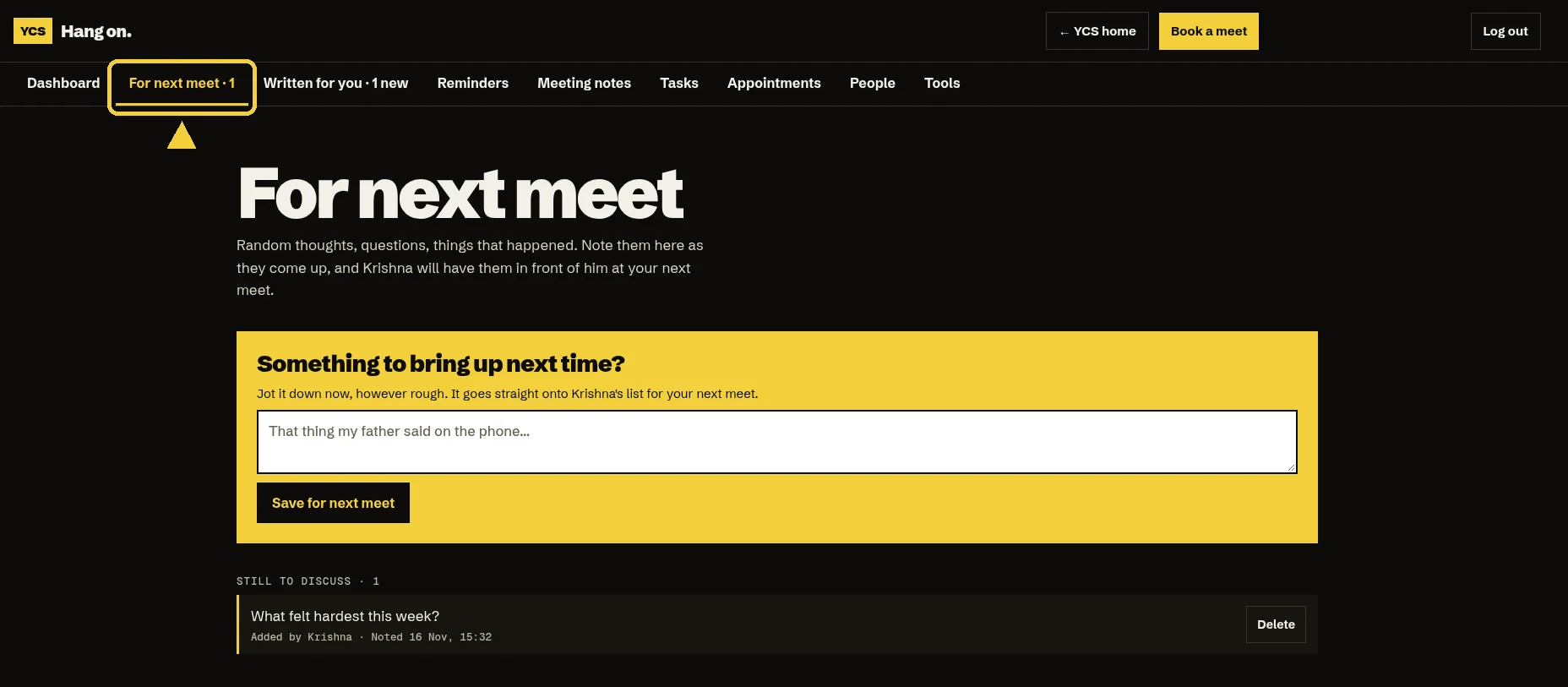
Jot a thought or a question so I have it when we sit down.

The For next meet tab, highlighted in the navigation, with a box to add something to bring up next time.

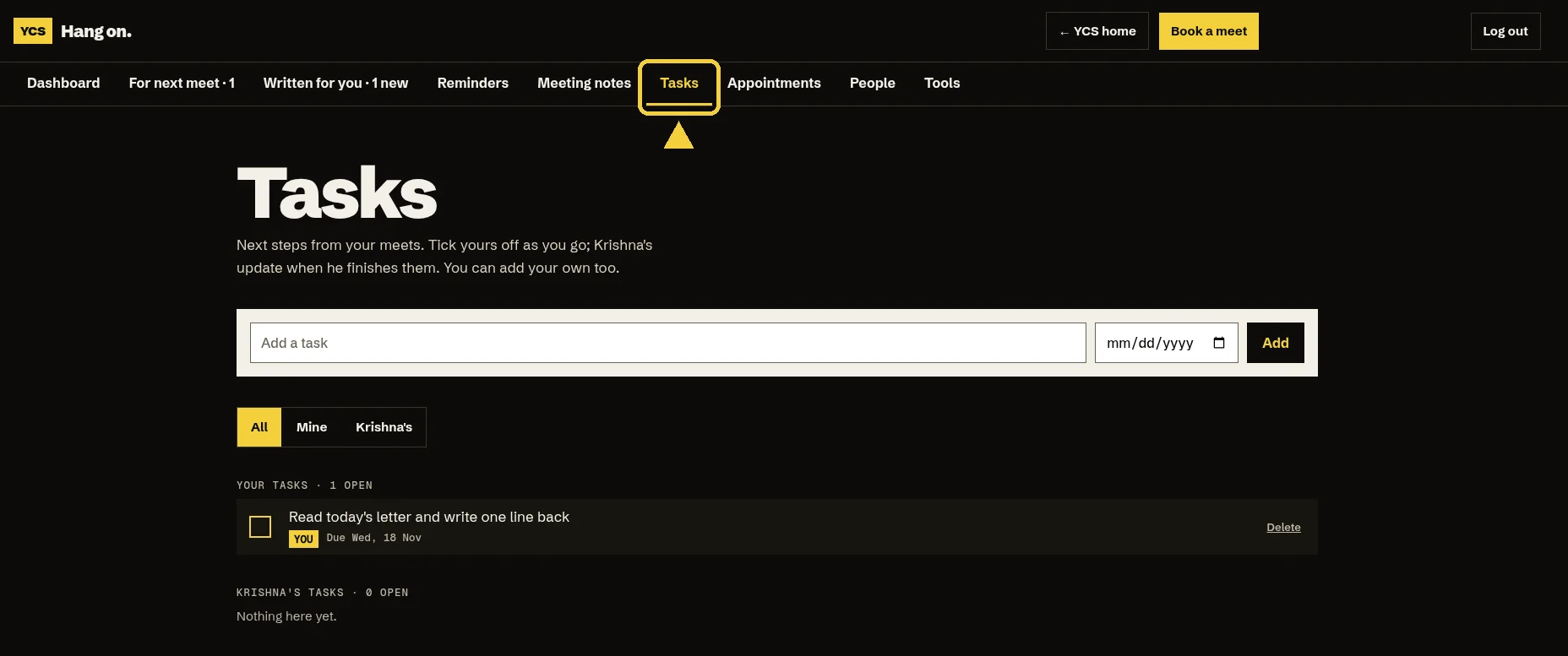
Tasks

Tick off your next steps, or add your own.

The Tasks tab, highlighted in the navigation, with a task to tick off.

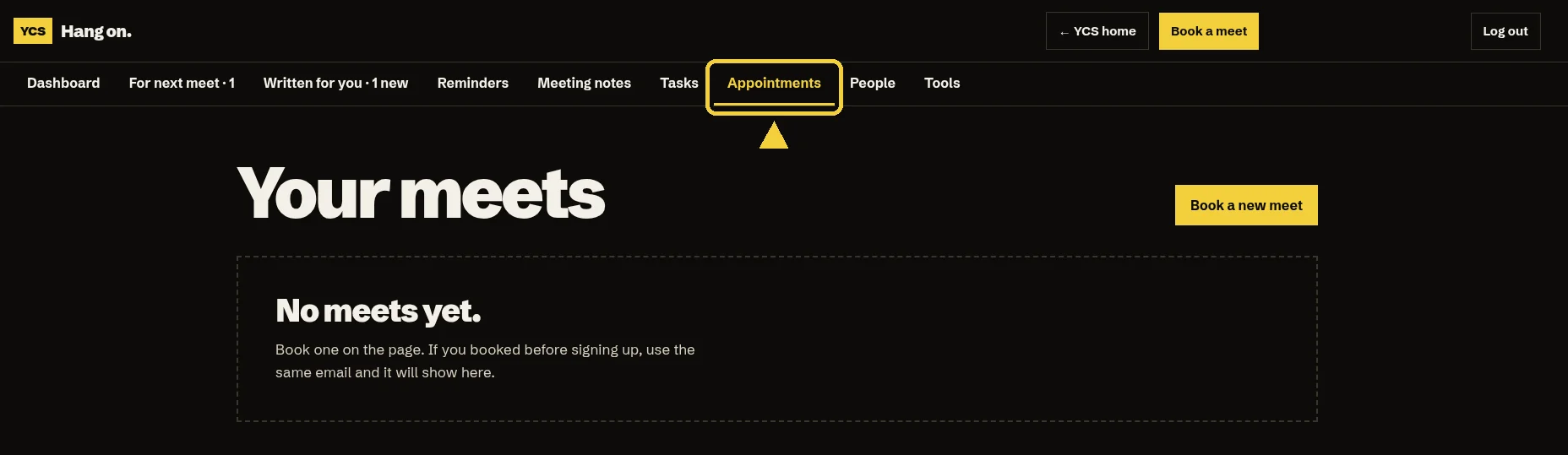
Appointments

Your bookings. Pick a date for a meet still to book, or book the next one.

The Appointments tab, highlighted in the navigation, with a Book a new meet button.

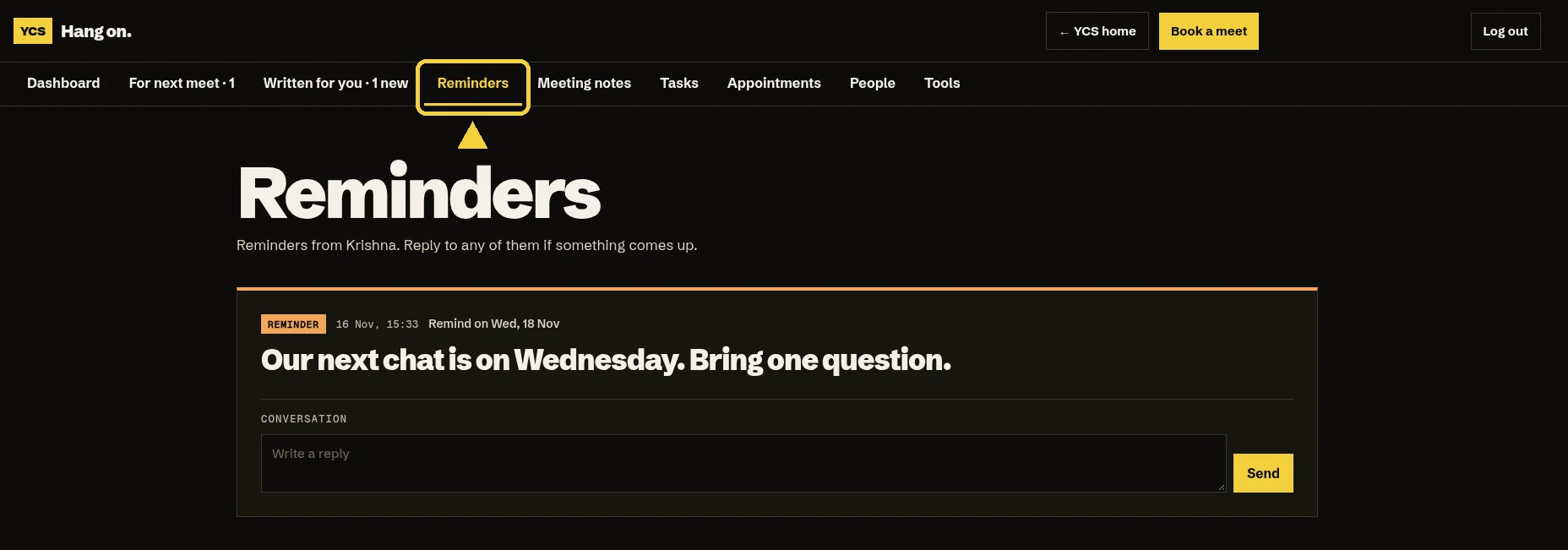
Reminders

Dated notes from me. You can reply to these too.

The Reminders tab, highlighted in the navigation, with a reminder and a reply box.

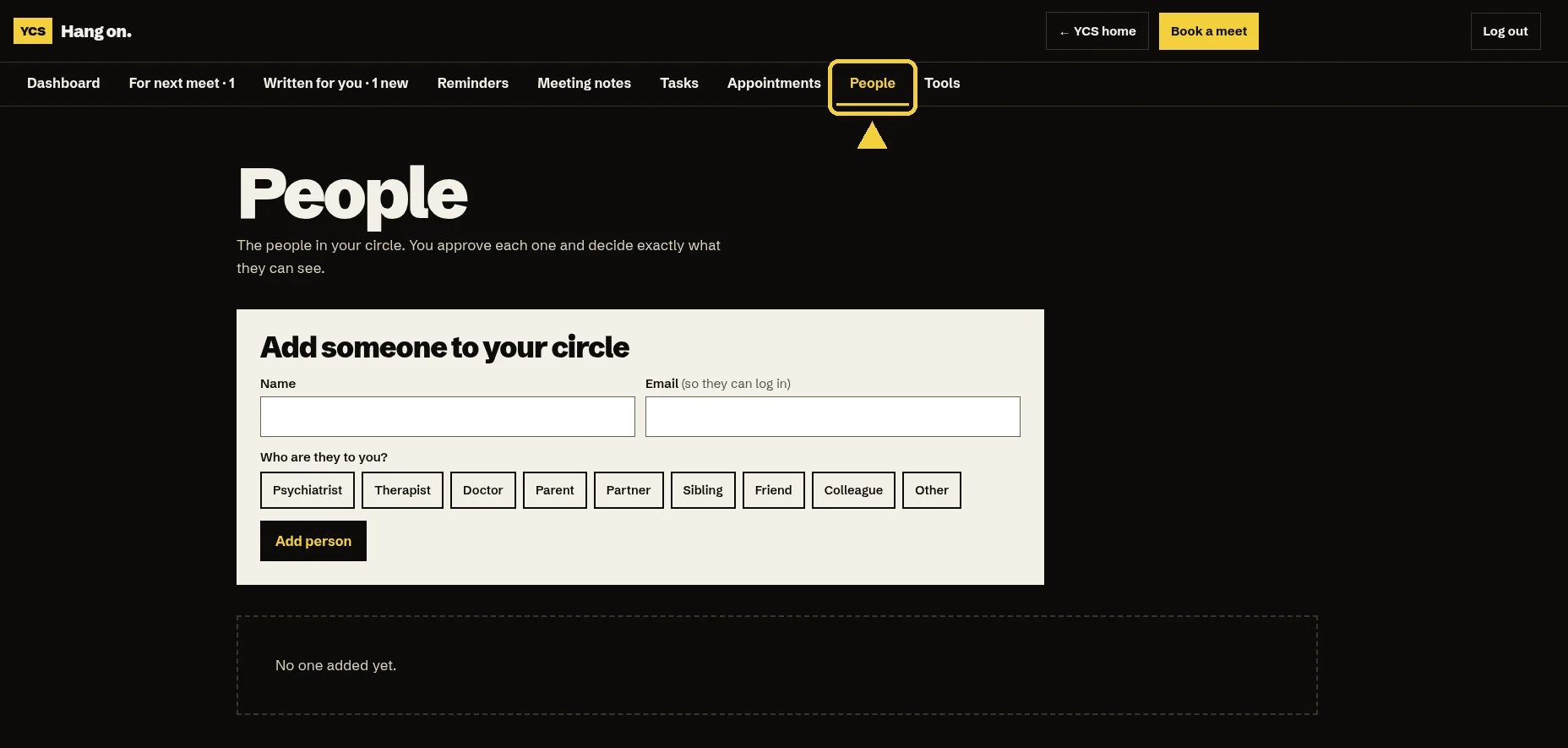
People

People are your collaborators. Add anyone you’d like alongside you, like your therapist, a doctor or a close friend. You choose what each person can see, including your letters and meeting notes, and they can read and reply too, so they’re part of the conversation.

The People tab, highlighted in the navigation, with a form to add a collaborator to your circle.

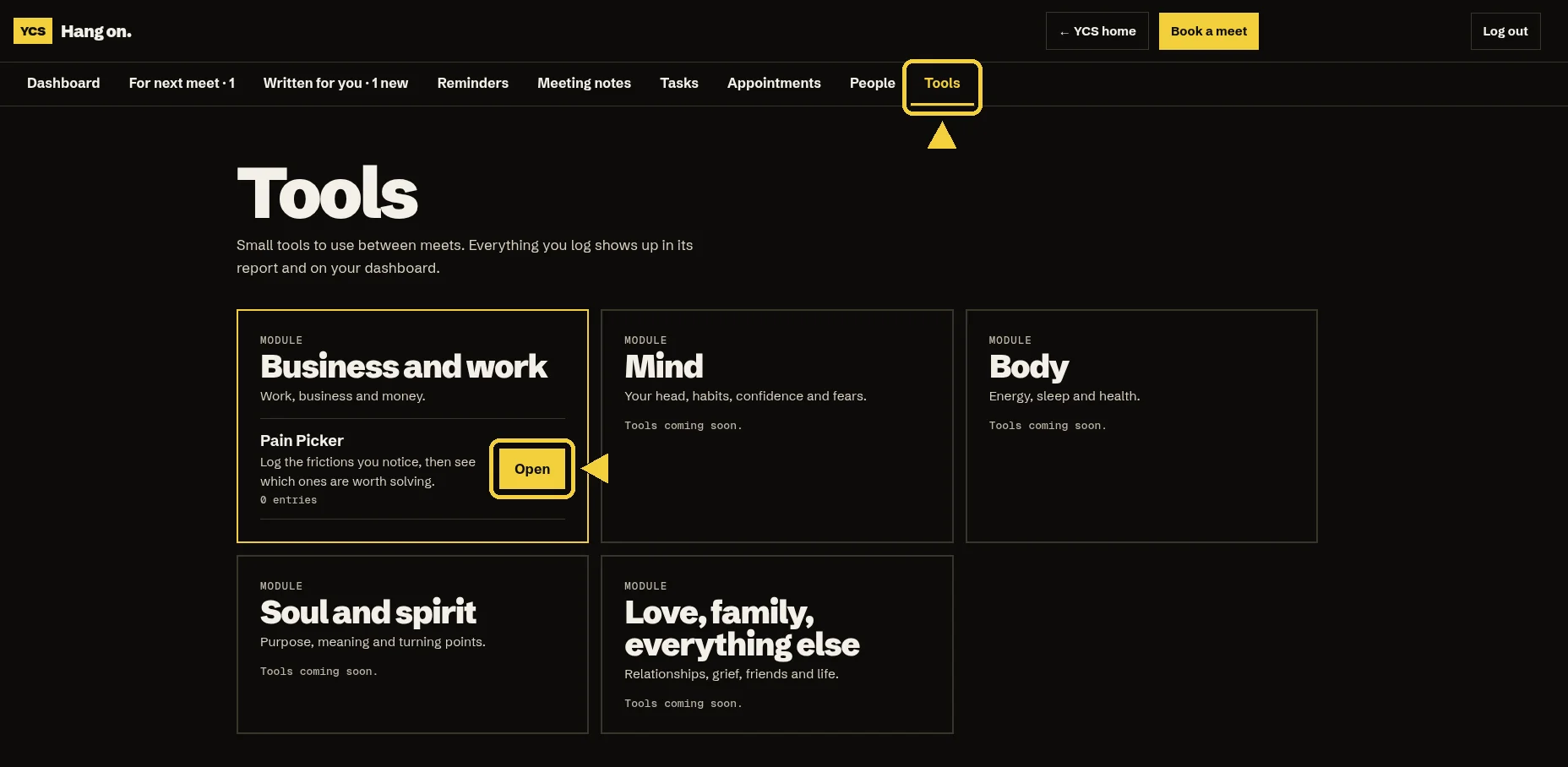
Tools

Including Pain Picker, to log what’s been bothering you between meets. Coming soon: Mood Log, Habit Tracker and Thought Jar.

The Tools tab, highlighted in the navigation, with the Pain Picker Open button also highlighted.

Two small tips

  • Tick Remember me when you log in, so you stay signed in on this phone.
  • The login link does not expire.